


How to set up email for your website on a computer and smartphone?
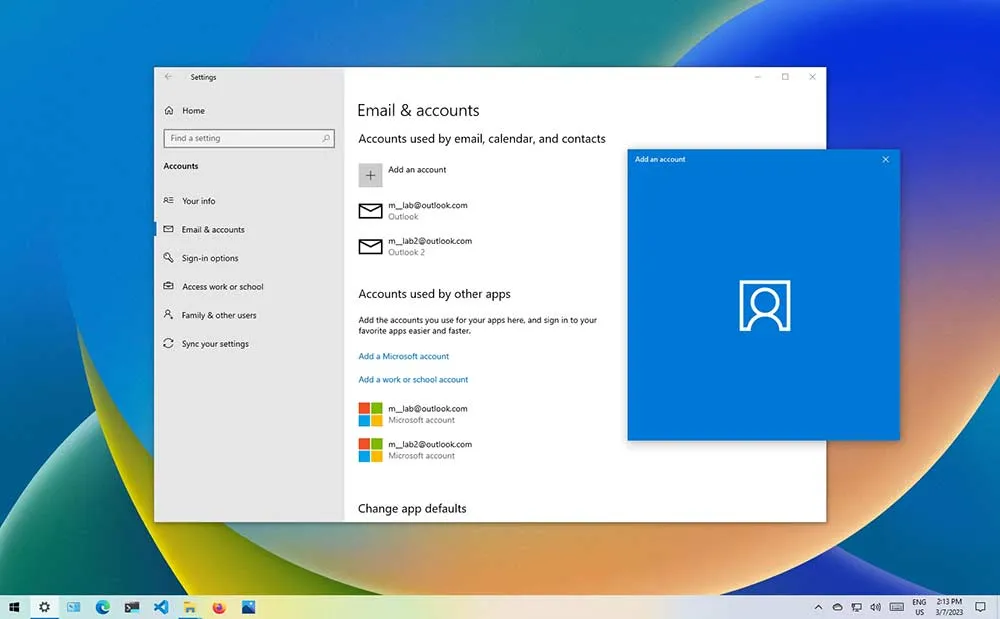
Setting up Email on Your Computer
To set up email on your computer, you will need to perform a few steps, including creating an account, setting a password, and configuring the necessary email settings such as incoming and outgoing server details. You can usually find these settings in the email service provider’s documentation or support resources. Once the setup is complete, you can access your webmail interface through the provider’s website or use an email client like Microsoft Outlook or Mozilla Thunderbird to manage your emails on your computer.
Secure SSL/TLS Settings (Recommended)
Username: yourname [at] yourdomain [dot] com Password: Use the email account’s password.
Incoming: mail.yourdomain.com | Server: IMAP Port: 993 | POP3 Port: 995 Outgoing: mail.yourdomain.com | Server: SMTP Port: 465
IMAP, POP3, and SMTP require authentication.
Non-SSL Settings (NOT Recommended)
Username: yourname [at] yourdomain [dot] com Password: Use the email account’s password.
Incoming: mail.cambodiacreative.com | Server: IMAP Port: 143 | POP3 Port: 110 Outgoing: mail.cambodiacreative.com | Server: SMTP Port: 2525
IMAP, POP3, and SMTP require authentication.
Setting up Email on Your Smartphone
Now let’s move on to setting up email for your website on your smartphone. The steps will vary depending on the operating system of your smartphone, whether it is iOS or Android.
Setting up Email on iOS Devices
For iOS devices, such as iPhones and iPads, you can add a custom domain email account by following these steps:
- Go to the Settings app.
- Select Mail.
- Choose Accounts.
- Select Add Account.
- Choose Other as the account type.
- Enter your email address and password.
- The device will attempt to automatically configure the necessary settings. If automatic configuration fails, you may need to manually enter the incoming and outgoing server details.
Setting up Email on Android Devices
For Android devices, the process is similar but may vary slightly depending on the manufacturer’s customizations. Generally, you can add a custom domain email account by following these steps:
- Go to the Settings app.
- Select Accounts or Accounts and Sync.
- Choose Add Account.
- Select Email as the account type.
- Enter your email address and password.
- The device will attempt to automatically configure the account settings. If it fails, you can select Manual Setup to enter the required server details manually.
Conclusion
In conclusion, setting up email for your website on both your computer and smartphone is essential for seamless communication. By following the steps provided by your chosen email service provider, you can easily configure your email account and start managing your emails efficiently across devices. Remember to regularly check for updates or changes in the settings to ensure optimal performance and security.